How to make a lithophane from a photo
A lithophane looks like a pale, bumpy plate until you hold it up to a light. Then the photo appears, with real shadows and highlights. This guide covers how it works, which photos and thicknesses to use, and how to print one.
How a lithophane works
The plate is thicker where the photo is dark and thinner where it is bright. Light passing through thin plastic comes out bright; light passing through thick plastic is mostly absorbed, so those areas look dark. That is all there is to it: no paint and no colours, just thickness.
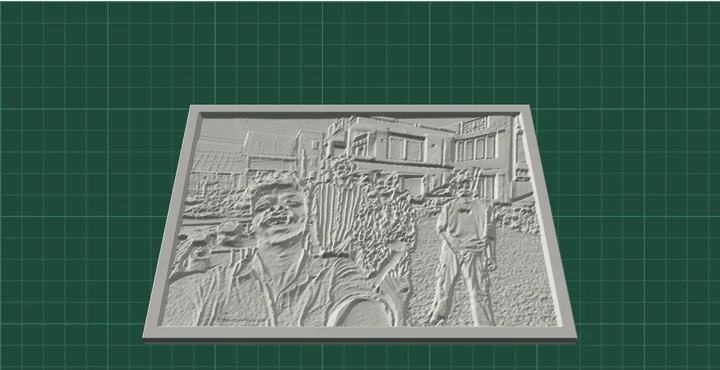
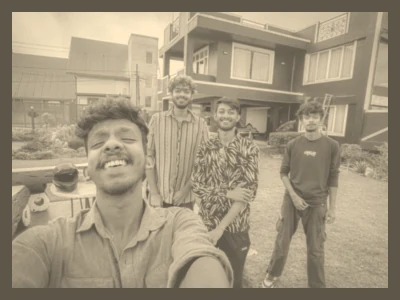
Step 1: Pick a photo that works
- Good contrast. A lithophane only has light and dark to work with, so a photo with clear shadows and highlights reads best.
- A clear subject. Faces, people and pets close up work better than small figures in a wide landscape.
- Not too much dark area. Dark parts become the thickest parts, so a mostly dark photo makes a heavy plate that takes a long time to print and lets little light through.
- Colour does not matter. The photo is turned into brightness; the lithophane shows it in shades of the light's colour.
Step 2: Choose the thickness
The two thickness settings decide how bright and how contrasty the result is. The tool's defaults, 0.8 mm at the thinnest and 3 mm at the thickest, are a common starting point for white PLA.
- Thinnest (bright). Thinner makes the highlights brighter, but below about 0.6 mm the plate gets fragile and can show tiny gaps.
- Thickest (dark). Thicker gives deeper shadows and more contrast, but needs a brighter light behind it.
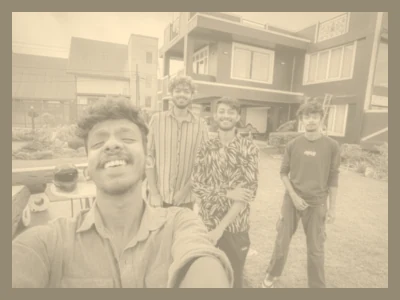
The backlit view in the tool is a simulation of white PLA with a warm light. It is good for comparing settings, but your filament and light will look a little different.
Step 3: Size, detail and border
- Width. 100 mm is a good first size; it prints in a few hours. The height follows the photo.
- Detail. The number of points along the longer side. A 0.4 mm nozzle cannot draw details much finer than about 0.4 mm, so 400 points across 100 mm (0.25 mm each) is already enough.
- Border. A solid border at the full thickness keeps the edges strong and frames the picture. 3 mm is a good default.
Step 4: Print it
- White or natural PLA. Coloured and dark filaments let much less light through.
- 100% infill. With anything less, the infill pattern shows up as lines when the plate is lit.
- Fine layers and slow outer walls, around 0.1 to 0.12 mm, for smooth tones.
- Flat or upright. Printed flat, flat side down, it needs no supports and is the easiest. Many people print lithophanes standing upright instead, because the layer lines then run across the picture and the detail comes from the nozzle's side-to-side movement; that needs a brim and a steady printer. Both work.
- Expect a longer print than a normal plate of the same size, because of the solid infill.
Step 5: Light it
Anything that lights the plate evenly from behind works: an LED panel, a strip of LEDs in a small box, or a bright window. A phone torch is enough for a first look. Warm white light gives the classic sepia look; cool white looks more like a black and white photo.
If it does not look right
The picture is too dark
Use a brighter light, or lower the thickest setting.
The picture looks washed out
Raise the thickest setting for more contrast, or pick a photo with stronger shadows.
Lines or a grid show through
The infill was below 100%. Print it again with 100% infill.
Want a picture you can see in normal light instead? Make a photo relief, or read which photos make the best 3D reliefs.