How to turn a photo into a 3D printable STL relief
A relief is a flat plaque with your photo raised out of it, like a carved coin or a medallion. This guide takes you from a photo to a printable STL or 3MF file in a few minutes, for free, without uploading the photo anywhere.
What you need
- A photo as JPG, PNG or WebP. Portraits, pets, groups, buildings and objects work well.
- A recent browser. Chrome, Edge and Safari run the AI on your graphics chip (WebGPU) and take a second or two per photo. Other browsers use a slower mode on the processor, which still works.
- A slicer such as PrusaSlicer, Bambu Studio, OrcaSlicer or Cura, and a 3D printer. The same file can also go into CAM software for a CNC carve.
Step 1: Load your photo
Open the tool and press Choose photo. The first time, your browser downloads the AI depth model (about 26 to 95 MB, depending on your device) from this site and keeps it, so later photos start in a second or two. The photo itself is read and processed on your device and is never uploaded.
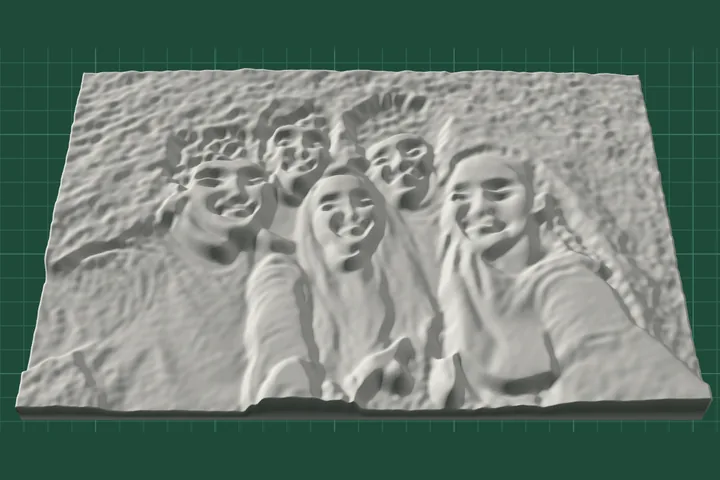
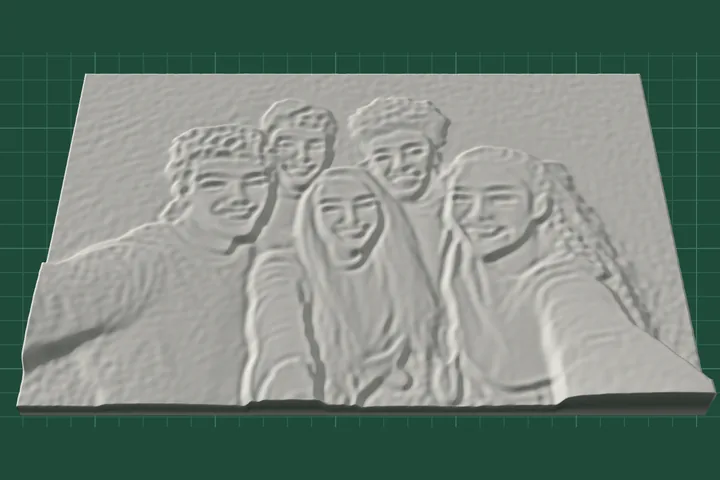
The tool builds three versions of the relief side by side, and each one has its own download button:
- Hybrid: the shape comes from the AI depth estimate and the fine detail from the photo. This is the one to print in most cases.
- AI depth: the depth estimate on its own. Smooth and clean, but with less surface detail.
- Brightness heightmap: light areas rise and dark areas sink. This is what most photo to STL converters do.
Drag any view to rotate all three together. On a phone the views are tabs, and the less common settings sit behind More settings.
Step 2: Set the size
Width sets how wide the plaque is. The height follows the shape of your photo, so a 4:3 photo at 100 mm wide comes out 75 mm tall. Base thickness is the solid plate underneath and Relief depth is how far the picture rises above it. The total thickness is the two added together: 2 mm + 5 mm = 7 mm with the defaults.
A 100 mm wide plaque with a 5 mm relief is a good first print. Very shallow reliefs lose their detail, and very deep ones start to look like a mask. If you scale the width up a lot, raise the relief depth with it.
Step 3: Choose the detail
Detail is the number of points along the longer side of the photo. More points give a sharper surface but a bigger file: at the default 300 px a 2:3 portrait comes to about 122,000 triangles and a 5.8 MB STL, and doubling the detail roughly quadruples that. 300 px is plenty for a 100 mm plaque printed at fine layer heights.
Smoothing softens the whole surface. Leave it at 1 unless the result looks rough.
Step 4: Pick a plaque shape and frame
Under Plaque, choose Rectangle, Rounded corners (with a corner radius from 2 to 40 mm) or Oval. Frame adds a raised border from 0.5 to 15 mm wide around the edge. The frame rises to the full height of the relief, which protects the surface and makes the plaque look finished. Rounded and oval plaques produce larger files than a rectangle of the same size.
Step 5: Fine-tune the hybrid relief
These four settings change only the Hybrid view. The defaults were tuned on a set of real photos, so start there.
- Flatten background lays distant areas, such as a far wall or a lawn, onto one flat level so they do not compete with the subject.
- Flatten big jumps evens out large steps in depth, such as a person standing in front of a wall, while keeping their edges sharp. Higher values make room for faces and folds within the same relief depth.
- Photo detail sets how strongly the fine texture of the photo (hair, fabric, wrinkles) is added on top.
- Detail size sets the largest texture feature taken from the photo. Small values add only the finest texture; larger values also bring in broader shading. At 1 even pixel noise is kept, so 2 or more is usually better.
| Setting | Range | Default | What it does |
|---|---|---|---|
| Width | 30 to 250 mm | 100 mm | Width of the plaque. The height follows the photo. |
| Base thickness | 0.6 to 6 mm | 2.0 mm | Solid plate under the relief. |
| Relief depth | 0.5 to 20 mm | 5.0 mm | Height from the lowest to the highest point of the relief. |
| Detail | 80 to 600 px | 300 px (200 on phones) | Points along the longer side of the photo. |
| Smoothing | 0 to 5 | 1 | Softens the whole surface. |
| Flatten background | 0 to 80 | 30 | Hybrid only. Lays distant areas onto one flat level. |
| Flatten big jumps | 0 to 100 | 60 | Hybrid only. Evens out large depth steps, keeps their edges. |
| Photo detail | 0 to 100 | 35 | Hybrid only. Strength of the fine texture taken from the photo. |
| Detail size | 1 to 8 px | 3 px | Hybrid only. Largest texture feature taken from the photo. |
Step 6: Download STL or 3MF
Under each view you see the final size, the number of triangles and the file size. Pick the file type, then press Download under the view you want. Both formats contain the same closed, printable model.
- STL opens in every slicer and CAD program. STL files carry no units; PictoSculpt writes them in millimetres, which is what slicers expect.
- 3MF is about five times smaller and stores millimetres, so slicers such as PrusaSlicer, Bambu Studio and OrcaSlicer always open it at the right size.
Step 7: Slice and print
- Lie it flat, relief up. The model has no overhangs, so it prints without supports.
- Use a fine layer height, around 0.1 to 0.12 mm, to keep faces and hair sharp.
- Check the size in the slicer before you print. It should match the size shown under the view in the tool.
- Light, matte filament shows the most detail, because a relief is read by its shadows. Light coming from the side brings it out best.
If the result is not what you expected
Dark hair or clothes sink into holes
That is the brightness heightmap at work. Download the Hybrid view instead, which takes its shape from depth, not brightness.
The background is lumpy or a deep trench appears beside the subject
Raise Flatten background so more of the distance is laid flat.
The subject sticks out like a mask, or looks too flat
Raise Flatten big jumps or lower Relief depth if it sticks out too much. Lower Flatten big jumps or raise the relief depth if it looks flat.
The surface looks grainy
Lower Photo detail or raise Smoothing by one step. If Detail size is at 1, set it to 2 or more.
A line drawing comes out as grooves
Dark lines currently become grooves rather than raised lines. A setting for raised lines is planned.
It is very slow on my phone
Your browser is probably using the slower processor mode. A recent Chrome, Edge or Safari on a computer is much faster.
Use photos you have the right to use
The files you make are yours. You do need the right to use the photo itself, so use your own photos or ones whose licence allows it, and ask before you turn someone else's portrait into a plaque.