Which photos make the best 3D reliefs?
Almost any photo can become a relief, but some turn out far better than others. Knowing what the tool does with your photo makes it easy to pick, or take, one that works.
What the tool does with your photo
PictoSculpt does two things. An AI depth model estimates how far away each part of the picture is, and that gives the relief its shape: near things rise, far things sink back. Then the light and dark of the photo add fine texture on top, such as hair, fabric and stone. A good photo for a relief is one where both of those are easy to read.
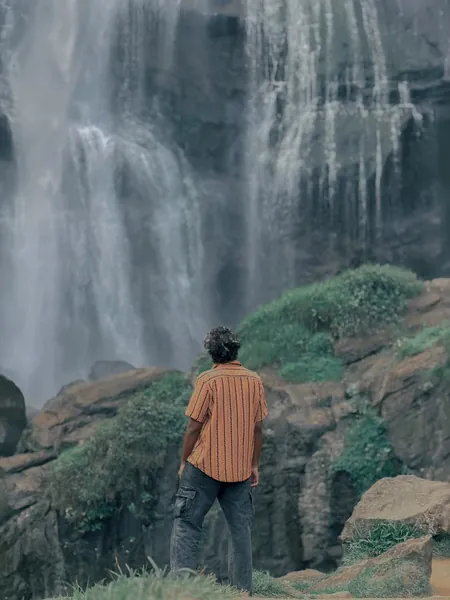
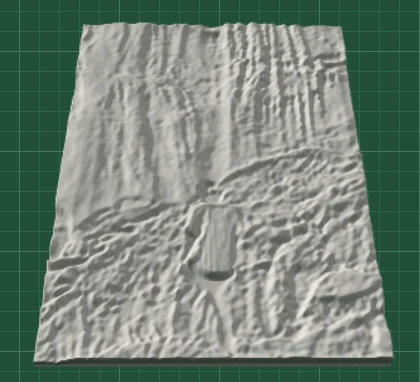
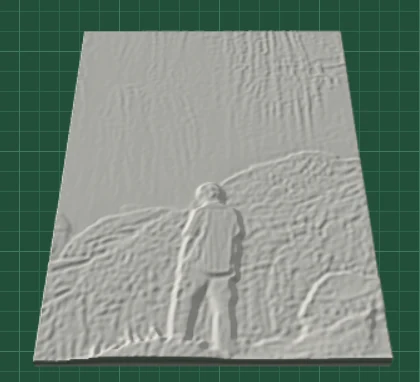
Same photo, same settings: 100 mm wide, 2 mm base, 5 mm relief, 300 px detail.
1. A clear subject with distance behind it
Because the shape comes from distance, the best photos have a subject that is clearly closer to the camera than what is behind it: a person in front of a landscape, a pet on a lawn, a group in front of a house. In the example above the waterfall is well behind the man, so it becomes a calm background and he stands out. A subject leaning against a wall, or a flat object photographed straight on, gives the AI little difference in distance to work with, and the relief comes out flatter.
2. Make the subject big in the frame
The Detail setting is the number of points along the longer side of the photo, up to 600. A face that fills half the picture gets plenty of them; a face that is a small dot in a wide shot gets only a few. Crop the photo to the subject before you load it, so more of the detail goes to what matters.
3. Soft, even light
The fine texture is taken from the light and dark in the photo, so strong shadows and bright highlights can turn into ridges and dips that are not really there. Daylight in the shade, an overcast sky or light from a window usually works better than harsh midday sun or a direct flash.
4. Watch out for strong patterns
Stripes, checks and bold prints on clothes show up as texture in the relief. In our example the stripes of the shirt are clearly visible. That can look good, but if a pattern distracts from a face, lower Photo detail a little.
5. Sharp, not grainy
A blurred photo loses its fine detail, and the noise of a dark or night photo can turn into a gritty surface. If your best photo is a little noisy, lower Photo detail or raise Smoothing by one step.
6. Resolution: any phone photo is enough
The relief uses at most 600 points along the longer side, so a photo from any recent phone has more than enough pixels. Very small images, such as thumbnails saved from social media, cannot give more detail than they contain; use the original photo where you can.
7. Choose the shape with the crop
The plaque takes the shape of the photo: the width is what you set, and the height follows the picture. A standing person suits a tall, portrait crop; a group or a landscape suits a wide one. Crop the photo to the shape you want the plaque to have, then pick a rectangle, rounded corners or an oval in the tool.
Photos that work less well
- Line drawings and logos. Dark lines currently become grooves rather than raised lines. A setting for raised lines is planned.
- A lone subject against a plain sky, or a very close shot of an animal, can come out as a flat cut-out with little shape inside it.
- Busy scenes with no clear subject, where everything is at a similar distance, turn into an even texture.
Use photos you have the right to use
Use your own photos or ones whose licence allows it, and ask the people in a photo before you turn it into a plaque. The people in our example photos agreed to be shown.
Next: how to turn a photo into a 3D printable STL relief, step by step.